Templates
Templates are simply SVG files, to which expressions can be added to use SignalK data, with options to make it easier to read, like rounding or simplifying dates and times. The template can have sample data in the placeholder, so is easy to layout and visualize.
The bundled templates, with the sizes and data each one uses, are listed under Examples.
Template Families (multiple panel sizes/colours)
Section titled “Template Families (multiple panel sizes/colours)”A “Template” selection can either be one specific .svg file, or a directory holding several versions of the same template for different panel sizes/colour-sets, e.g. templates/tides/416x240-BWRY.svg and templates/tides/250x128-BWRY.svg both implement the tide clock, just at different sizes.
Each template is named <width>x<height>-<colours>.svg, where <colours> is one letter per supported colour: B(lack)/W(hite)/R(ed)/Y(ellow) - e.g. BWRY for a 4-colour panel, BWR for a 3-colour one.
Selecting the directory (e.g. tides) instead of one file lets one DeviceConfig entry - especially a device: "All discovered devices" entry covering several different physical panels - automatically pick the best-fitting file for each device’s actual size/colours, trying in order:
- An exact width/height/colour-set match.
- Failing that, width/height alone (any colour-set).
- Failing that too, the nearest width, tie-broken by whichever file’s own height/width ratio is closest to the device’s.
Reframing
Section titled “Reframing”There’s some wiggle room with the reframe options to use a template that’s a bit too small, or too large, for the label, although best results come from a template that’s precisely matching the pixel height and width of the label. Next best is template that has the same aspect ratio, so it can be cleanly scaled. crop is the 2nd least worst, though if its only a handful of pixels its often not worth worring about a separate template and crop is just fine. scale is likely to look worst, since it will force an image in regardless of aspect ratio.
Other Image Options
Section titled “Other Image Options”Each label has a few more settings for how the image is sent, under Advanced settings. The CLI paint command has matching options (see Command Line Interface), so you can try them on a label before changing the plugin config.
- Compress upload - on by default. Sends much less data over Bluetooth, so painting is quicker, uses less of the label’s battery and is less likely to time out. Works for Zhsunyco labels and Gicisky 7.5”/10.2” labels, and is ignored for others. Turn it off if a label stops updating.
- Wire format (Gicisky, experimental) -
autoby default.chunkedsends a Gicisky 4.2” BWR label compressed, the same way as the 7.5”/10.2”. The vendor’s own app has been seen doing this, but it hasn’t been tested on current firmware. Set it back toautoif the label stops updating. - Mirror -
noneby default.horizontalorverticalfixes a label model whose image comes out mirrored.bothrotates the image 180°, for a label that has to be mounted upside down.
Template Source Specification
Section titled “Template Source Specification”In the description of the SVG text box, use a comma separated set of key value pairs to define the data source and formatting.
SignalK Paths
Section titled “SignalK Paths”For example, path=environment.forecast.description uses the default data source (the self vessel context) and the named SignalK path. A bare path with no key/value pairs at all, e.g. just environment.forecast.description, is shorthand for the same thing. Overriding the default context can be done with path=environment.forecast.description,context=vessels.urn:mrn:imo:mmsi:232345678 - the context value must match a real SignalK context exactly as it appears in the Data Browser.
SignalK REST APIs
Section titled “SignalK REST APIs”The source can be overridden to use the SignalK server’s Resources API instead. Change source to resources and specify which resource with resource. If there are multiple providers for the same resource, and they’re not equally useful, then either set a default provider in SignalK, or use the provider tag to set the name.
For example, source=resources,resource=tides,provider=tides,path=station.name picks the tides resource and pulls the station.name path out of the JSON response - this works for any resource type (tides, waypoints, routes, …), and needs nothing configured: the plugin reaches the Resources API directly. Where a resource is specified, it will be fetched once for that render, and subsequent fields sourced from the same resource use that cached response. provider is optional, the default provider will be used if not specified.
Plugin Derived Data
Section titled “Plugin Derived Data”source=einklabel reads data injected by the plugin itself, rather than from SignalK. Available paths:
path=repainted- the timestamp of the current repaint - for examplesource=einklabel,path=repainted,format=local_datetime_shortto show when the label was last updated.path=local_zone- a short zone name (e.g.BST) for the same timezone used forlocal_time/day_mon/local_datetime_short(see above) - a fallback forenvironment.time.timezoneRegion,format=utc_offseton installs that never publish that path, since it needs no SignalK metadata of its own. Falls back to a plain UTC offset likeGMT+1where the host’s locale has no real abbreviation for the zone.path=plugin_version- expose the version of the eInk Label plugin itself.
Label Details
Section titled “Label Details”source=label reads facts about the label being painted, so one template can adapt to different labels. Available paths:
path=description- the label’s Location/description setting, e.g.source=label,path=descriptionpath=manufacturer- the label’s maker, e.g.Zhsunycopath=label- the model’s panel size, e.g.3.7"path=widthandpath=height- the panel size in pixelspath=colours- the colours the panel can show, e.g.black (#000000); addformat=csvfor a plain comma-separated listpath=fonts- the font families that are always available:serif,sans-serifandmonospacepath=position- the vessel’s position, rounded to about 1km
These also work in the fallback warning shown when a template fails to render. Changing a label’s description repaints it.
Customizing Output
Section titled “Customizing Output”A format can be specified to make the value easier to understand. The supported formats are:
local_time- reduce a time stamp to just the time (H:M:S), omitting the date, and applying daylight savings if appropriateday_mon- reduce a time stamp to day and month, e.g.27 Jun, applying daylight savings if appropriatelocal_datetime_short- format a time stamp as day, abbreviated month, 2-digit year and 24h time, e.g.21 Jun 26 18:05, applying daylight savings if appropriateutc_offset- Show a timezone inUTC+01:00style formatposition- Format a{ latitude, longitude }value as decimal degrees with hemisphere letters, e.g.56.6250°N 6.0700°Wraw- Don’t apply automatic SignalK unit conversion and symbol display (see below)
SignalK’s unit preferences are used to automatically convert a signalk-sourced numeric value to its preferred display unit, and append a unit symbol like kt or m, unless format=raw is specified to switch that off. However, when using plugin or API data there may be no path metadata to convert from (for example signalk-tides publishes tide data to the Resources API, and level is a raw metre value with no SignalK path of its own) - in these cases an explicit category can be given instead, and the unit preferences will be applied the same way, for example category=depth for the tides level figure.
Note that for dates and times, the server timezone must be set correctly, for example Europe/London rather than the default Etc/UTC - see Times are showing incorrectly.
Common categories
Section titled “Common categories”depth- Use the SignalK preferred depth unit, make the conversion if needed, and tack on the unit name as a suffixspeed- Use the SignalK preferred speed unit, make the conversion if needed, and tack on the unit name as a suffixtemperature- Use the SignalK preferred temperature unit, make the conversion if needed, and tack on the unit name as a suffix
Additionally, round=n can be used to round to limited decimal places.
default=<value> substitutes <value> whenever the resolved value is missing (e.g. an unpublished path), instead of falling through to an empty string - useful anywhere a blank would be misread as a real answer. default= with nothing after the = still counts as set, deliberately defaulting to an empty string rather than leaving the fallback behaviour unchanged.
These can all be combined as in source=resources,resource=tides,provider=tides,path=extremes[2].level,category=depth,round=2
Non-Textual Fields (Images)
Section titled “Non-Textual Fields (Images)”The same <desc> mechanism works on an <image> element instead of a <text> element, for a value that’s better shown as a picture than as text - a moon phase icon, a wind direction arrow, a weather condition glyph, and so on. Rather than substituting text, the resolved value picks one of a directory of .svg files to embed, by an extra required assets= key naming that directory - an .assets/<name> sub-directory looked up in your configured templates directory first, and the bundled templates directory otherwise. For example, the tide clock’s moon phase icon uses:
path=environment.moon.phaseName,assets=lunar_phaseswhich resolves against templates/.assets/lunar_phases/ (bundled, or your own configured templates directory’s .assets/lunar_phases/ if you have one). The resolved value (e.g. "Waning Gibbous", as published by the derived-data plugin) is normalized to match a filename - lower-cased, punctuation and spaces collapsed to underscores - so "Waning Gibbous" picks waning_gibbous.svg out of that directory. If the underlying path has no value at all (e.g. the derived-data plugin isn’t installed), or the value doesn’t normalize to any file in the directory, the <image> element is omitted from that render - no broken image, no placeholder, nothing shown - and a line is logged to the console so a missing/unmatched value isn’t silently invisible.
If you don’t like the bundled moon phase icons, save your own <value>.svg files in the .assets/lunar_phases sub-directory of your configured templates directory - the whole directory is used in place of the bundled one, so add all 8 phases you want to keep, not just the ones you’re changing. These moon phases can be re-used in any other label.
This is a general mechanism, not specific to moon phases - any source/context/path/format combination valid for a <text> binding works here too (a source=resources value, an explicit category=, etc.), the only difference is the required assets= directory and the “no match -> no image” behaviour instead of substituted text. To add your own, put a directory of <value>.svg files under an .assets/<name> sub-directory of your templates directory, add an <image> element in your SVG editor at the size/position you want, and give it a <desc> the same way you would a text field - overriding just the template, just its assets, or both together, all work independently.
Three font types are loaded by default, use the generic font family, or exact font name, in the SVG editor and choose size and weight (bold, semi-bold etc). Some labels will make a decent attempt to gray scale. Use the simple pure red, yellow, white, black to match the label’s limited colour choice (some labels only offer black and white, or black/white/red). If a font can’t be matched it will default to (sans-serif) Roboto.
serif-Roboto Serifsans-serif-Robotomonospace-Roboto Mono
Designing Templates
Section titled “Designing Templates”Templates can be added to the configurable directory. Inkscape free, open source, and recommended for editing templates, or your own favourite editor, or by hand in a text editor for hard core (or just tidying up the template side).
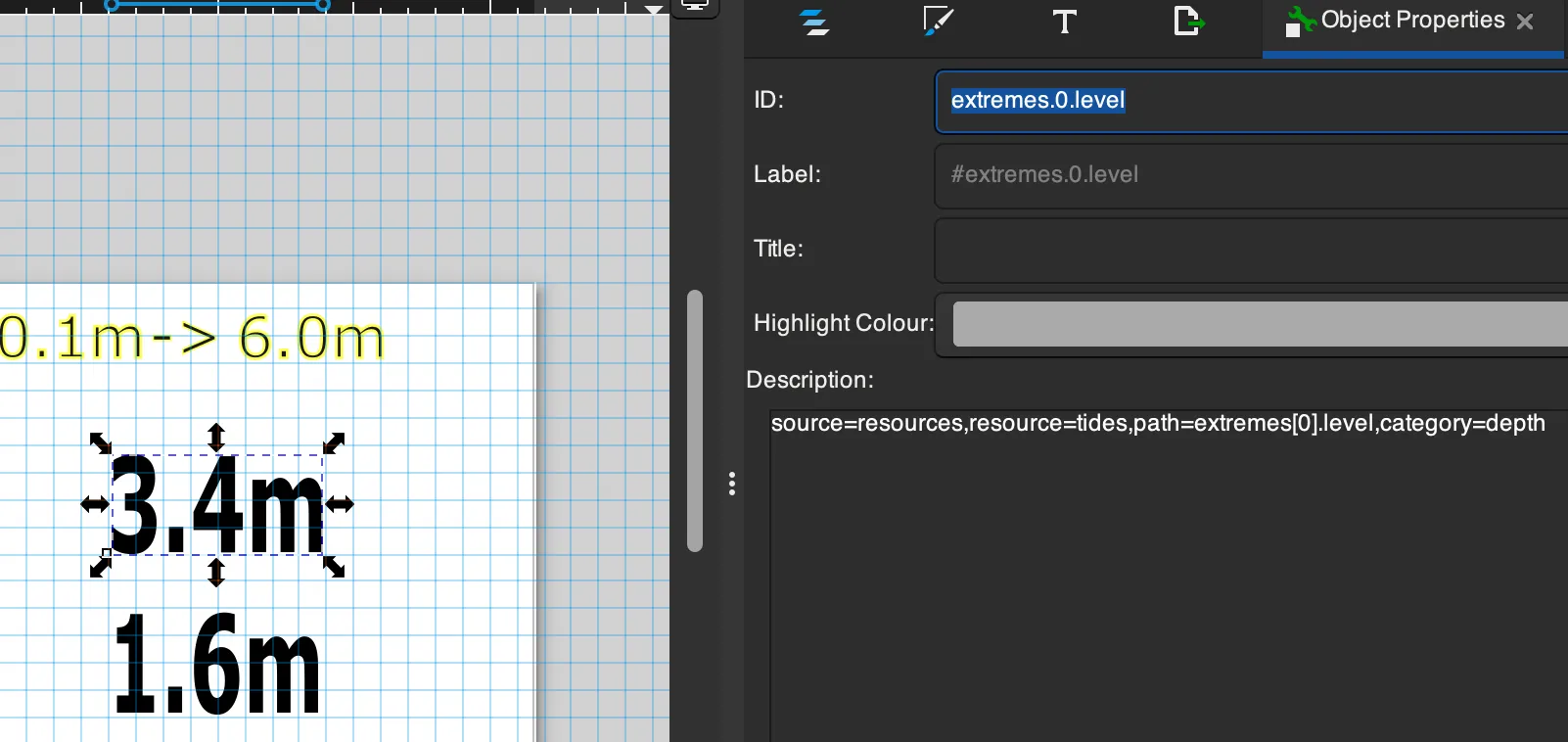
The object ID and label aren’t used by the plugin, only the description is used to define fields. You can also add in ordinary text fields without field definitions, as labels, logos, help text etc.
Placeholder text isn’t necessary, and is ignored by the plugin, but makes it much easier to visualize the result.
Inkscape adds its own metadata to images, which can be stripped off by exporting a simple SVG, although can be left in place with no harm; main reason to simplify the SVG is manual changes in a text editor.
Due to a limitation in the resvg-wasm library used to turn SVGs into images, the font-family is limited to serif,sans-serif,monospace or the exact name of one of the installed fonts - Roboto (sans serif), Roboto Serif or Roboto Mono.
Inkscape has its own fonts, which won’t match what’s available in the SignalK plugin, so for more precise design, install Roboto from Google via the web page, brew on MacOS or similar.
To try a template out without a label, or even without a SignalK server, use the CLI’s render and fields commands - see Debugging Templates.
GenAI Rendering
Section titled “GenAI Rendering”As an alternative to hand-designed SVG templates, a device’s content can be generated by an LLM instead - this is provided entirely by a separate companion plugin, @rhizomatics/signalk-einklabel-genai-plugin, not by this core plugin. The base plugin (BLE painting, SVG templates) has nothing to do with any LLM SDK or API key, so installing it never pulls in GenAI dependencies unless you also explicitly install and enable the companion plugin - the split is deliberate, for anyone on a small/constrained install or who’d simply rather not have any GenAI code in their install at all.
Once the companion plugin is installed and enabled, its own config screen handles provider/model/API-key selection (OpenAI, Anthropic, Google, xAI, DeepSeek, Moonshot AI, Ollama, or any other OpenAI-compatible endpoint), and its prompts show up as ordinary entries in this plugin’s “Template” dropdown, suffixed (e.g. “forecast (GenAI)”) - pick one exactly like you’d pick a .svg file. Under the hood it’s a TemplateProvider (see Template Providers) - the same extension mechanism a new vendor’s hardware driver uses - so from this plugin’s point of view it’s just another way templateName gets resolved to an image.
If the LLM call fails (network/API error, exhausted retries) or its response isn’t renderable, this core plugin pushes its own bundled warning template instead of leaving the previous, possibly now-wrong, content on screen - so a stale weather prompt never quietly shows yesterday’s forecast through today’s storm. This is a generic safety net, not GenAI-specific: the exact same fallback covers a broken hand-authored template failing to render at all. The next scheduled repaint retries automatically. Since each repaint may call a (usually paid) LLM API, a GenAI-backed device should use Repaint Trigger interval, not subscription.
See the companion plugin’s own README for installing it, writing prompts, and its esl-cli prompt/generate commands for testing prompts without a device.